In short
What it measures
form fields (text boxes, checkboxes, drop-downs) without a label associated in code.
Benchmark
MDN: text next to the field isn’t enough; you need an implicit or explicit label element. The placeholder is not a label.
Why it matters
the screen reader reads the label on entering the field, and clicking it moves focus to the field: without it, both are lost.
Severity in Wakaris
Critical. Fails on 12% of the pages analyzed.
What this finding is and what it measures
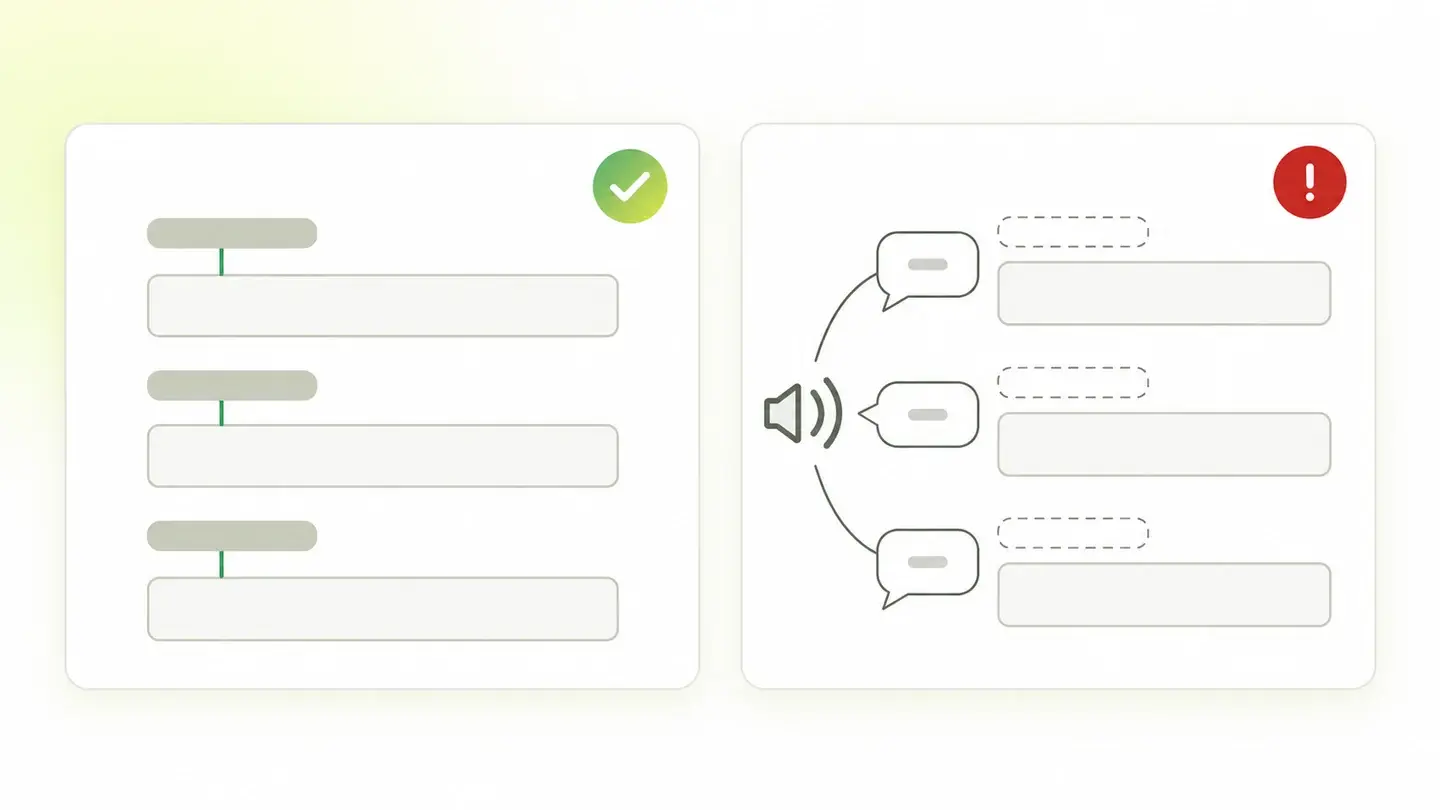
This finding shows up when your page has form fields without a label associated in code. The label is the HTML label element, which according to MDN represents a caption for an item in a user interface. Its job isn’t just to show text next to the field: it’s to tell the browser, and assistive technology, that this text describes this field.
The association is made in two ways. Explicit: the field has an id and the label a for attribute with the same value. Implicit: the field is nested inside the label, with no for or id. Either one works.
What doesn’t work is what MDN expressly rules out: having plain text next to the input isn’t enough; usability and accessibility require an implicit or explicit label. Text that looks like a label but isn’t associated is, to the software, just another paragraph.
How it’s measured
Wakaris loads the URL you give it, finds every form field on the page and checks whether it has an associated label: a label with for pointing to its id, a label wrapping it, or an accessible name provided another way. The result is a count of fields without a label, with the instance and code snippet for each one.
The threshold is strict: the finding shows up from the first field without a label, with extra cut-offs at 3 and 10 fields to give a sense of scale. The severity is the check’s own, Critical, whatever the count.
One nuance for reading the report correctly: the placeholder attribute, the gray text that appears inside the empty field, doesn’t count as a label. MDN is categorical: it isn’t a label and shouldn’t be used as a substitute, because it disappears when you type, isn’t accessible to screen readers and automatic translators may skip it. A field with only a placeholder is a field without a label for Wakaris, just as it is for the screen reader.
Why it matters
It matters because the label turns a box into a question. Without it, someone who can’t see the screen knows there’s a field, but not what’s being asked.
MDN describes the two benefits that are lost. The first is for screen reader users: the screen reader reads the label when the person enters the field, so they know what to enter. Without the association, they hear "text field" and guess from context. The second is for everyone: clicking or tapping the label moves the browser’s focus to the field. That larger hit area helps anyone, especially on touch screens.
And there’s a conformance side. WCAG success criterion 3.3.2, level A, asks for labels or instructions when content requires user input. That criterion doesn’t require the label to be associated; that’s covered separately by 1.3.1, Info and Relationships, also level A. A form with text next to its fields can meet the first and fail the second, which is what this finding detects.
Common causes
The causes are almost never a decision: they’re ways of building forms that look correct on screen.
The first is the placeholder as the only label. It’s the most widespread pattern in compact forms: the field says "Name" in gray until you type. It looks clean, but MDN warns that the placeholder should never be needed to understand the form and recommends avoiding it.
The second is loose text next to the field. A paragraph, a span or a table cell with the caption, and the field beside it, with no for or nesting. It looks identical to a well-built form; to the software there’s no relationship.
The third is a broken label: there’s a label with for, but the field’s id changed, is duplicated or is generated by a script with a different value. The caption is there and the association isn’t.
The fourth is fields generated by components: header search boxes, newsletters, third-party forms or visual builders that create the field without a label or with a hidden one that’s badly linked. Whoever builds the page didn’t write that HTML.
How to fix it
Start with the Wakaris report: it gives you every field without a label with its code snippet, and that tells you which cause each one comes from.
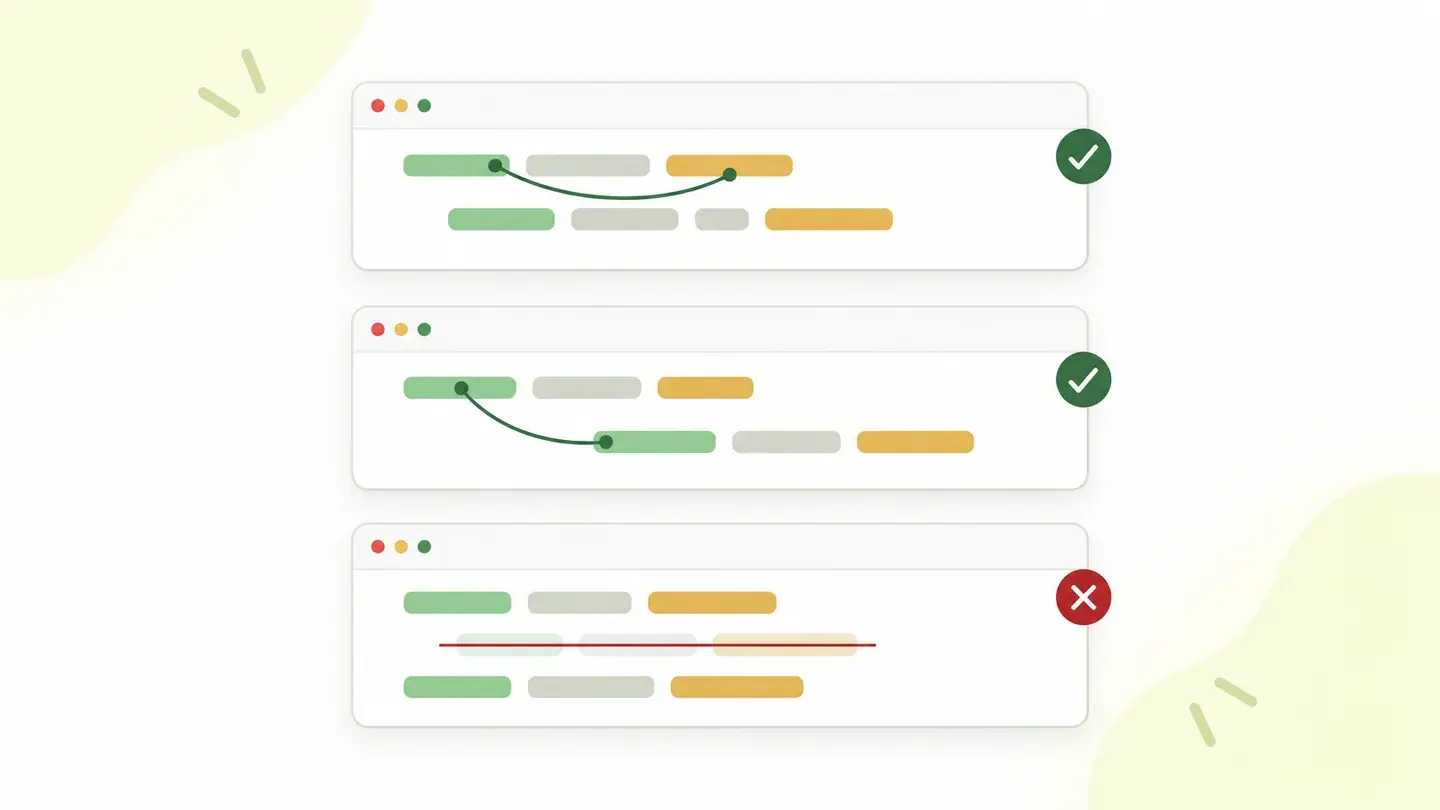
If the field has text next to it acting as a caption, turn it into a label. The simplest route is the explicit one: an id on the field and a for with the same value on the label. Nesting the field inside the label also works and needs no identifiers.
If the field only has a placeholder, add a visible label. The placeholder can stay as an example of the expected format, which is its role according to MDN, not as a substitute for the caption. If the design doesn’t allow a visible label, give the field an accessible name another way, although it’s less robust.
If the label exists but doesn’t link, check that the for and the id match and that the id is unique on the page. Don’t put links, buttons or headings inside the label: MDN warns that they make it harder to activate the field. Then run the page through Wakaris again and check that the count drops to zero.
Ask your AI
If you want to dig deeper into your specific case, copy one of these two prompts and paste it into the AI you use. Pick the one that fits your situation.
I already have the finding measured with Wakaris and want to fix it
Act as a professional, careful technical web reviewer. Your goal is to help me understand a specific finding about my website and decide what to do about it, without making anything up.

Context: I got this finding from Wakaris, a tool that analyzes a website across 9 areas (performance, SEO, security, social, market, AI, user experience, accessibility and legal) and explains each problem so that every profile on a team can understand it. The finding is: Form labels. There are form fields on my page (text boxes, checkboxes, drop-downs) without a label associated in code, so a screen reader announces them as "text field" without saying what to type. Benchmark: every field must have an associated label element, explicit (for and id) or implicit (nested), or an accessible name provided another way; the placeholder doesn’t count. The Wakaris threshold is zero fields without a label.

Paste the Wakaris result here: how many fields have no label, on which page and, if it says, the code snippet for each one. If you don’t have it, tell me and I’ll tell you how to get it before we continue.

Rules you must follow at all times:

1. Don’t assume anything about my website. Every piece of data you use must come from what I confirm to you or from what Wakaris has measured. If you don’t know something, ask me before stating it.
2. Before giving me any conclusions, ALWAYS ask me these questions, all together and in plain language, to find out whether this finding really affects me and where:
   a) What platform is your website built on? (WordPress, Shopify, custom-built, other)
   b) Are the flagged fields in one specific form (contact, newsletter, search, payment) or spread across several?
   c) Do those fields show gray text inside (a placeholder) as their only hint, or do they have a visible caption next to them?
   d) Is the form generated by a plugin, a visual builder or a third-party service, or did someone on your team write the HTML?
   e) Can you edit the form’s HTML, or only its options in a dashboard?
   f) Has the form or the template changed recently?
   g) If a technical fix is needed, would you do it yourself, or would an in-house technician or an agency do it?
3. Every statement or recommendation must be justified in terms of MY context, not in general. If you recommend something, explain why it applies to my case.
4. Always state your level of certainty. If something is a hypothesis because you can’t measure it, say so: you can’t see my website, you’re reasoning from what I tell you.
5. Don’t suggest irreversible or risky technical changes (server configuration, deleting resources, direct changes in production) without first warning me about the risk and that a backup or a test environment is advisable.
6. If you need data that can only be obtained by checking the website (confirming the actual result, the exact page, or whether the fix worked), tell me and recommend that I run the page through Wakaris again: that gets checked, not guessed.
7. The final decision is mine, not yours. Your role is to help me understand and prepare the action, not to decide for me.
8. If the fix goes beyond what I can do myself, or a team will carry it out, help me get the problem ready to hand over: what it is, where it is, why it matters and what should be done, in a format that person can act on.

Source of this finding: https://www.wakaris.com/en/guides/accessibility/form-labels
To check it or check it again: https://www.wakaris.com/

Start by briefly introducing yourself in your role and asking me the first set of questions.
I haven’t measured it yet and want to check whether my website has this problem
Act as a professional, careful technical web reviewer. I’m looking into whether my website has a specific problem, and I want you to help me find out honestly, without taking it for granted.

Context: I came to this through Wakaris, a tool that analyzes a website across 9 areas (performance, SEO, security, social, market, AI, user experience, accessibility and legal) and explains each problem so that every profile on a team can understand it. The problem I want to look into is: Form labels. It means some form field on my page (text box, checkbox, drop-down) has no label associated in code, and a screen reader announces it as "text field" without saying what’s being asked. Benchmark: every field must have an associated label element; the placeholder doesn’t count. The threshold is zero fields without a label. I DON’T know yet whether my website has it: I want to find out.

Rules you must follow at all times:

1. First and most important: this is CHECKED on the real page, and you can’t check my website from this conversation. Make it clear from the start that you won’t be able to give me a definitive "yes, you have it" or "no, you don’t", only a hypothesis based on what I tell you.
2. Don’t assume anything. Before giving me any assessment, ALWAYS ask me these questions, all together and in plain language, to estimate whether I’m likely to have the problem:
   a) Do your forms show the field name only as gray text inside the box, which disappears when you type?
   b) If you click the text next to a field, does the cursor go into the field or does nothing happen?
   c) Are the forms generated by a plugin, a visual builder or an external service?
   d) How many forms does the website have: just contact, or also search, newsletter, sign-up, payment?
   e) What platform is it built on? (WordPress, Shopify, custom-built, other; or I don’t know)
   f) Has anyone ever reviewed the website’s accessibility?
3. Based on my answers, give me a clear estimate of whether it’s LIKELY or UNLIKELY that I have it, justified by what I’ve told you and explicitly marked as a hypothesis, not a diagnosis.
4. Tell me directly that the only way to really know is to check it, and that I can do it for free and without creating an account by running my website through Wakaris, which will give me the actual result, the count of fields without a label, with the code snippet for each one and, along the way, the status of the other areas.
5. If I ask you how to check it by hand, don’t hide it from me, but remind me that Wakaris does it faster, on the real page and with extra information I don’t get by hand.
6. If, once checked, it turns out I do have it, tell me the next step is to understand how it affects me and how to fix it in my specific case.
7. The conclusion and the decision are mine, not yours. You help me find my way.

Source of this finding: https://www.wakaris.com/en/guides/accessibility/form-labels
To check it: https://www.wakaris.com/

Start by briefly introducing yourself in your role, making point 1 clear, and asking me the set of questions.
Frequently asked questions
Doesn’t the placeholder work as a label? +
No. MDN says so without qualification: the placeholder isn’t a label and shouldn’t be used as a substitute. It disappears when you type, isn’t accessible to screen readers and automatic translators may skip it. It’s for giving an example of the expected format, not for saying what the field is.
What’s the difference between associating the label with for and id and nesting the field? +
None in the result: in both cases the browser associates the text with the field, the screen reader reads it on entry and clicking the label moves focus to the field. The explicit one, with for and id, lets you place the label elsewhere in the HTML; the implicit one avoids inventing identifiers.
If the text is next to the field and clearly visible, why does it fail? +
Because the relationship you see isn’t seen by the software. MDN is explicit: plain text next to the field isn’t enough; you need an implicit or explicit label. Without the association, the screen reader announces a nameless field and clicking the text doesn’t move focus to the box.
Can a field have an accessible name without a visible label? +
Yes, it can be given a name in other ways, and Wakaris treats it as labeled if that name exists. But the visible label is the one MDN describes as always appropriate: everyone can see it, it enlarges the hit area and it doesn’t depend on assistive technology interpreting an attribute.
Sources cited
- developer.mozilla.org<label>: The Label element, MDN Web Docs: what a label is, explicit and implicit association, how the screen reader reads it on entering the field, the larger hit area and what not to put inside a
label. - developer.mozilla.org<input>: The HTML Input element, MDN Web Docs: the placeholder isn’t a label or a substitute, why, and why plain adjacent text falls short of an implicit or explicit label.
- w3.orgUnderstanding Success Criterion 3.3.2: Labels or Instructions, W3C WAI: the criterion text, level A, its intent and the clarification that correct association is covered by criterion 1.3.1.
- web.devLabels and text alternatives, web.dev: the two ways to associate a
labelwith a field, the label text as a click area and what the screen reader announces for a well-labeled box.

Updated: September 7, 2026.
This article is part of Wakaris, which analyzes your website across 9 areas and explains each finding so that every profile on your team can understand it.